Preface
A few days ago someone asked why, after uploading a token avatar/logo to a blockchain explorer, the logo still doesn't show up in MetaMask.
This usually happens because the wallet provider hasn't indexed it yet. In that case you need to submit it yourself. The official submission channel is via GitHub:
https://github.com/MetaMask/contract-metadata?tab=readme-ov-file#submission-process
Upload Guide
First, to upload code to GitHub you need to have git installed. If you don't know how to install it, you can use an assistant (AI) to help install it for you.
Below is how to update your token information so MetaMask can show your token logo.
Open the repository: https://github.com/MetaMask/contract-metadata
Click the Fork button in the top-right to copy the repository into your own GitHub account.
In your forked repository, put the token logo under the /icons directory.
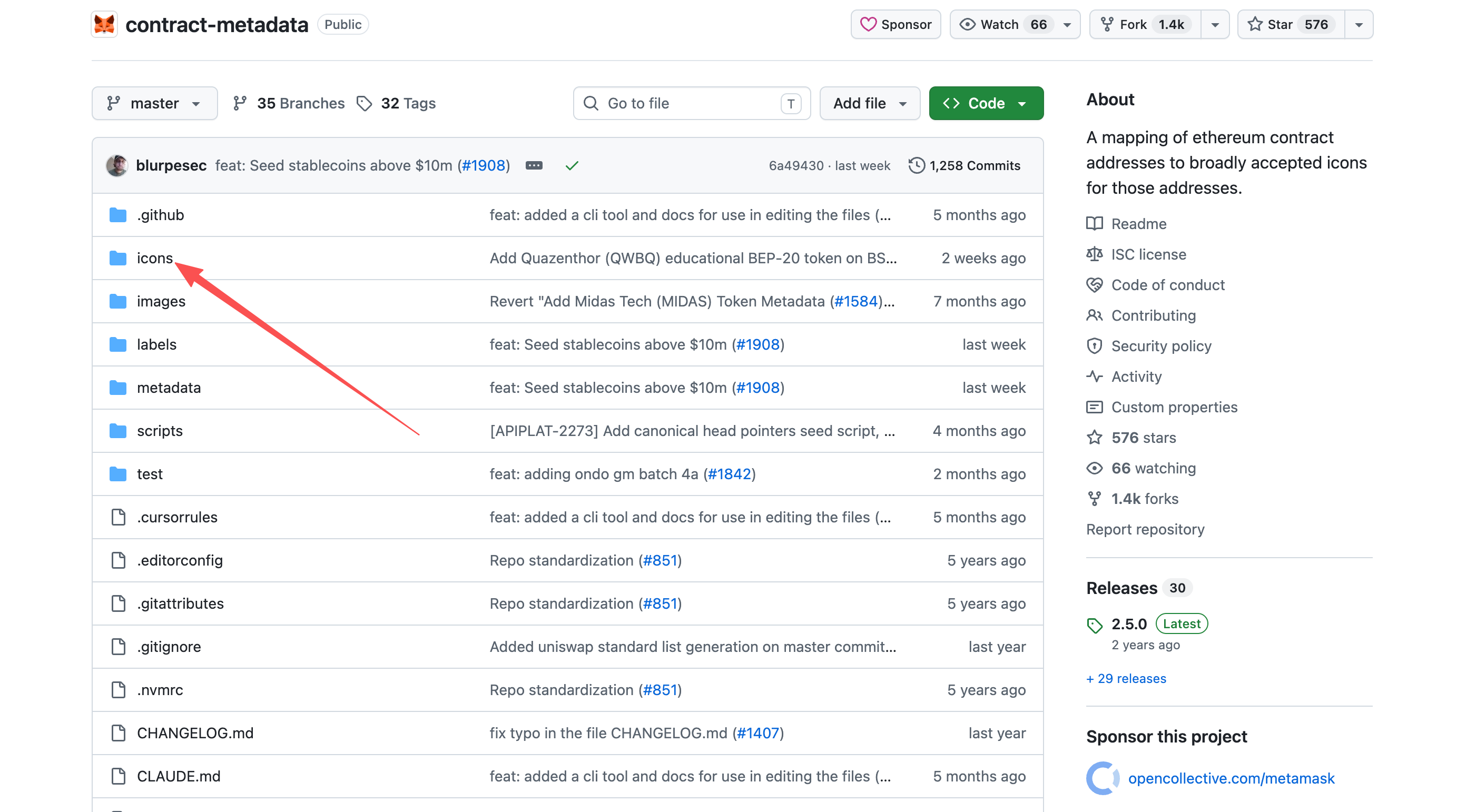
Upload logo to repository
Note: Logos should be .png or .svg, preferably square and high-resolution. The MetaMask README requires this.
Create the token's metadata file under the /metadata folder.
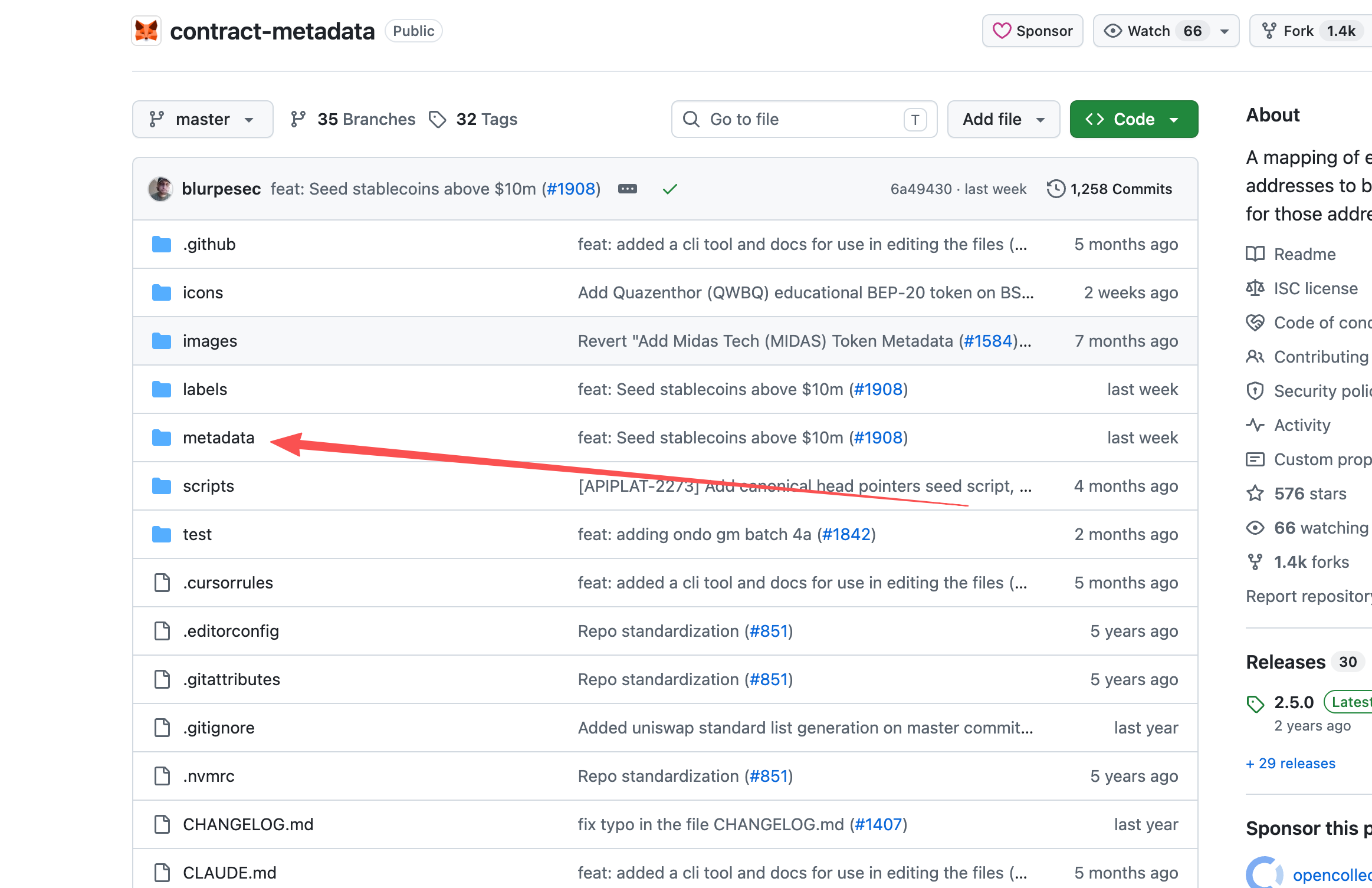
Create metadata file
For example, if your token is on Ethereum:
Chain ID: 1
Go into the eip155:1 folder and create a JSON file for your token.
If you don't know which chain your token is on, check chainlist.
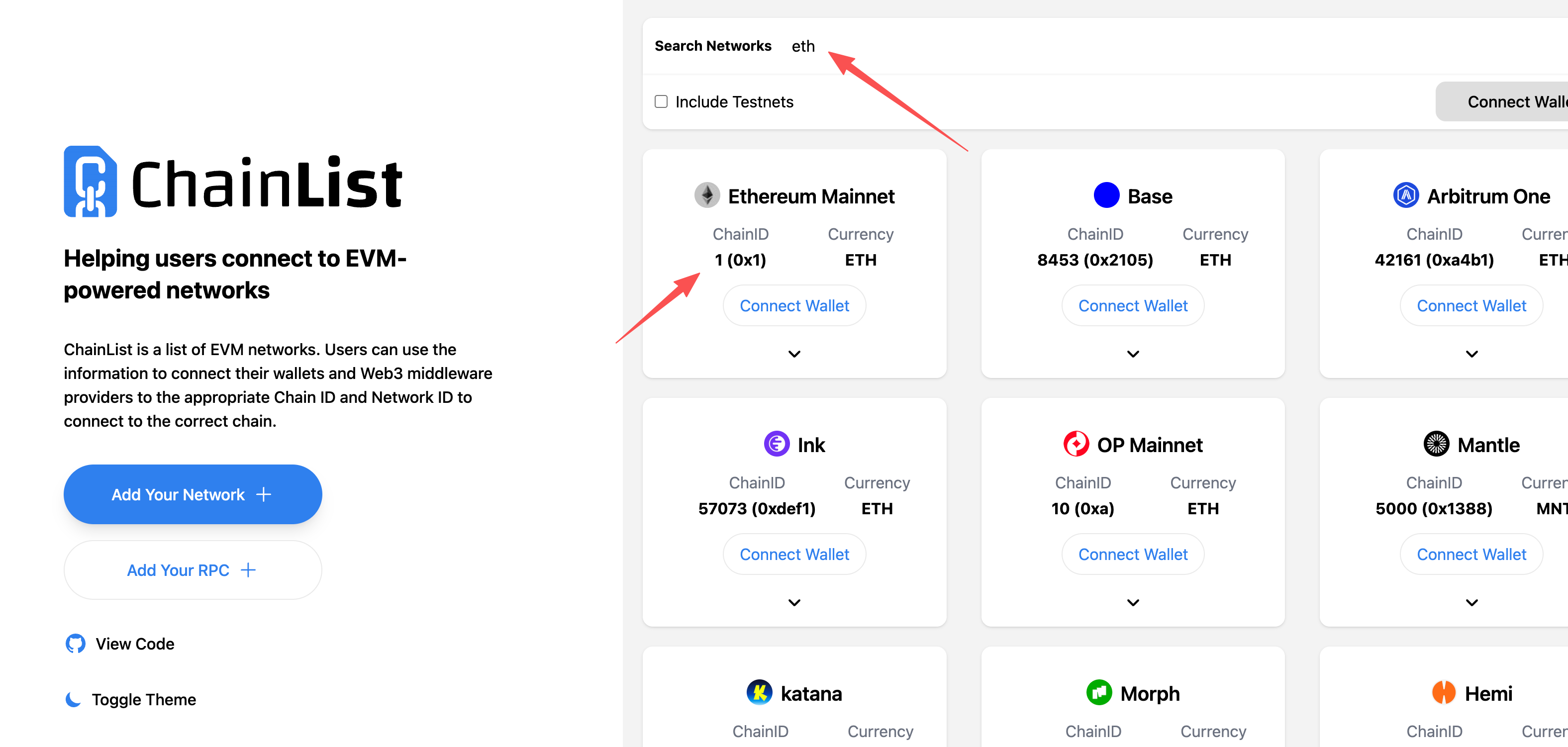
Find chain ID on Chainlist
Assume your contract address is:
0x1234567890AbCdEf1234567890AbCdEf12345678
The file path you create would look like:
eip155:56/erc20:0x1234567890AbCdEf1234567890AbCdEf12345678
And the file content would be similar to:
{
    "eip155:56/erc20:0x1234567890AbCdEf1234567890AbCdEf12345678": {
        "name": "Your Token Name",
        "symbol": "TOKEN",
        "decimals": 18,
        "erc20": true,
        "logo": "./icons/eip155:56/erc20:0x1234567890AbCdEf1234567890AbCdEf12345678.png"
    }
}
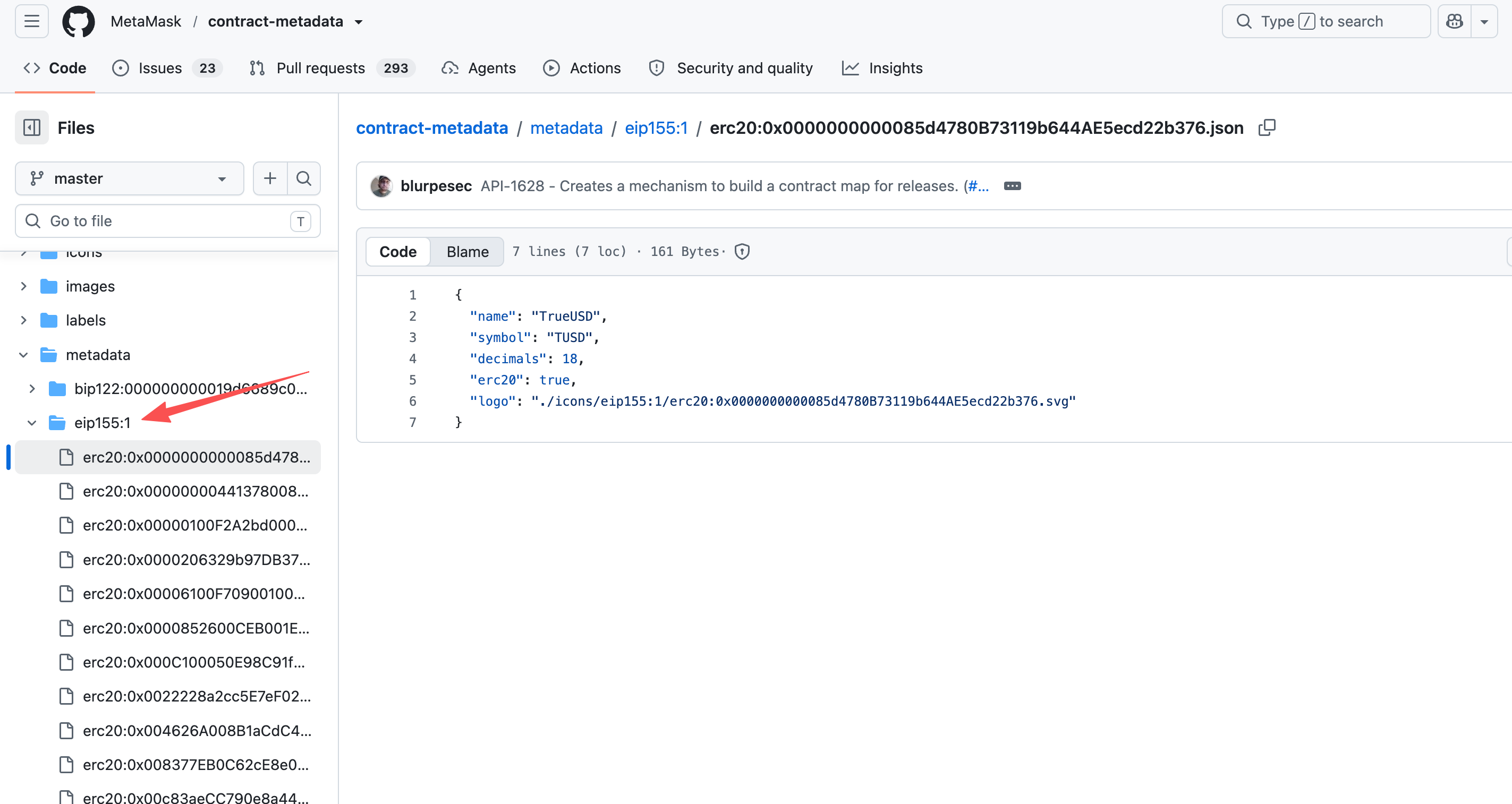
Example file structure
The logo file name should match:
icons/eip155:56/erc20:0x1234567890AbCdEf1234567890AbCdEf12345678.png
Note that the contract address must use the checksum format.
After you finish the changes, go to your forked repository page and click:
Contribute → Open pull request
Then submit a PR to:
MetaMask/contract-metadata
In the PR description it's recommended to include:
- Token Name: XXX
- Symbol: XXX
- Network: BNB Smart Chain
- Contract: 0x...
- Official Website: https://...
- Explorer: https://bscscan.com/token/0x...
It's especially important that the official website clearly shows the contract address, because MetaMask's review requires an official website that proves the address belongs to the project.
If you prefer the command line, you can use the repository's CLI to generate the files automatically:
npm run asset:set -- \
    --caip "eip155:56/erc20:0xYourChecksumAddress" \
    --name "Token Name" \
    --symbol "TOKEN" \
    --decimals 18 \
    --image ./logo.png

npm run asset:verify -- \
    --caip "eip155:56/erc20:0xYourChecksumAddress"

node buildindex.js
Then git commit, git push, and create the PR.
Simplified Version
You can use AI to help automate the token information upload. First, install a ChatGPT desktop client (or another assistant) and use prompts to perform the upload steps.
Step 1
Install git and tell your assistant that you need to upload code to GitHub; ask it to help install git.
Step 2
Following the rules at https://support.metamask.io/develop/how-to-add-a-token-logo/, have the assistant prepare and submit your token information. My token details are:
Token Name: XXX
Symbol: XXX
Network: BNB Smart Chain
Contract: 0x...
Official Website: https://...
Explorer: https://bscscan.com/token/0x...
Step 3
Have the assistant complete the submission according to MetaMask's update rules.
Final Notes
Uploading a token logo so it appears in MetaMask usually requires both uploading on the explorer and manually uploading files to the GitHub repository. Uploading via GitHub is the only official channel — do not trust third parties claiming they can upload logos on your behalf without following the official process.
If manual steps are difficult, you can use an AI assistant to help perform the upload.
Contact Us
To learn more about CPBOX products and features, visit https://docs.cpbox.io/
If you have suggestions or want help with development, find contact details at the bottom of the homepage: https://www.cpbox.io/cn/
You can also reach us via social channels below.
Other Channels
TG Group: https://t.me/cpboxio
Docs: https://docs.cpbox.io
Twitter: https://twitter.com/Web3CryptoBox
YouTube: youtube.com/channel/UCDcg1zMH4CHTfuwUpGSU-wA